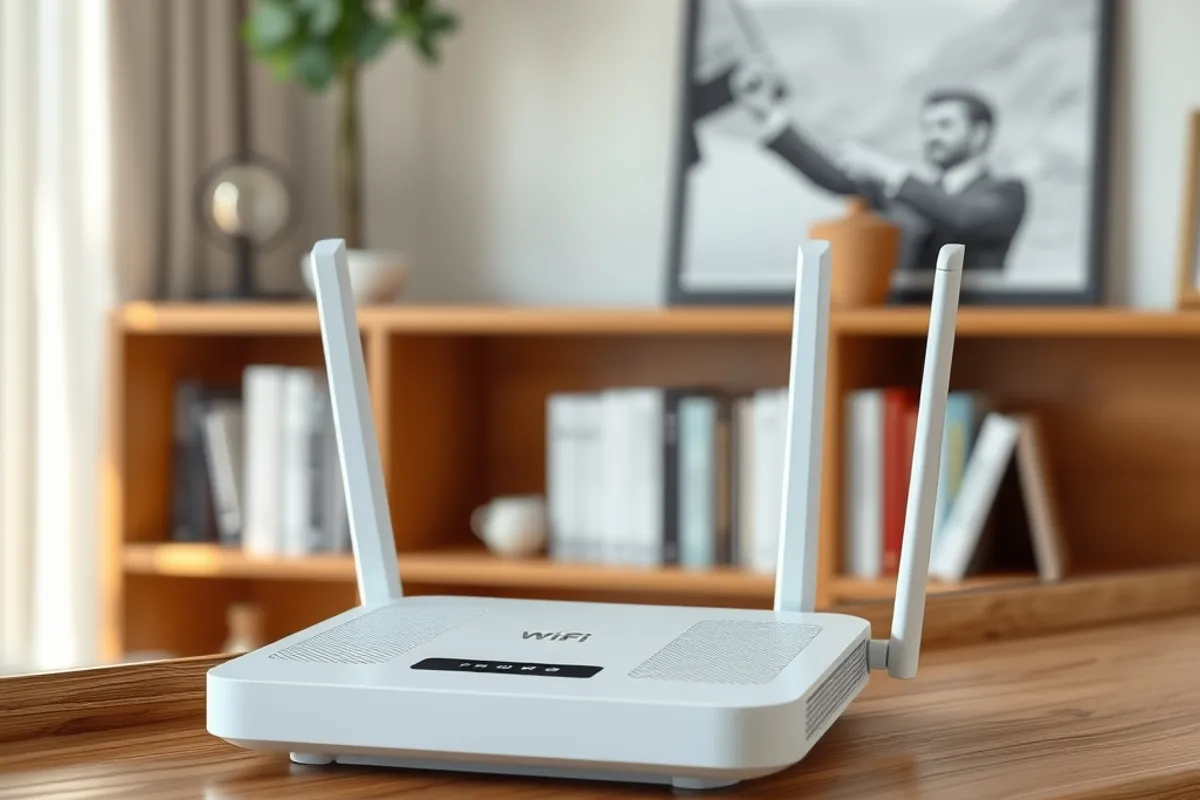
Home networks have quietly become critical infrastructure. Calls, classes, work, streaming and a dozen smart devices all share the same air. When it stutters, the instinct is to buy a bigger router. Usually the money would be better spent on one cable and an afternoon of moving equipment.
Map Your Space and Your Demand
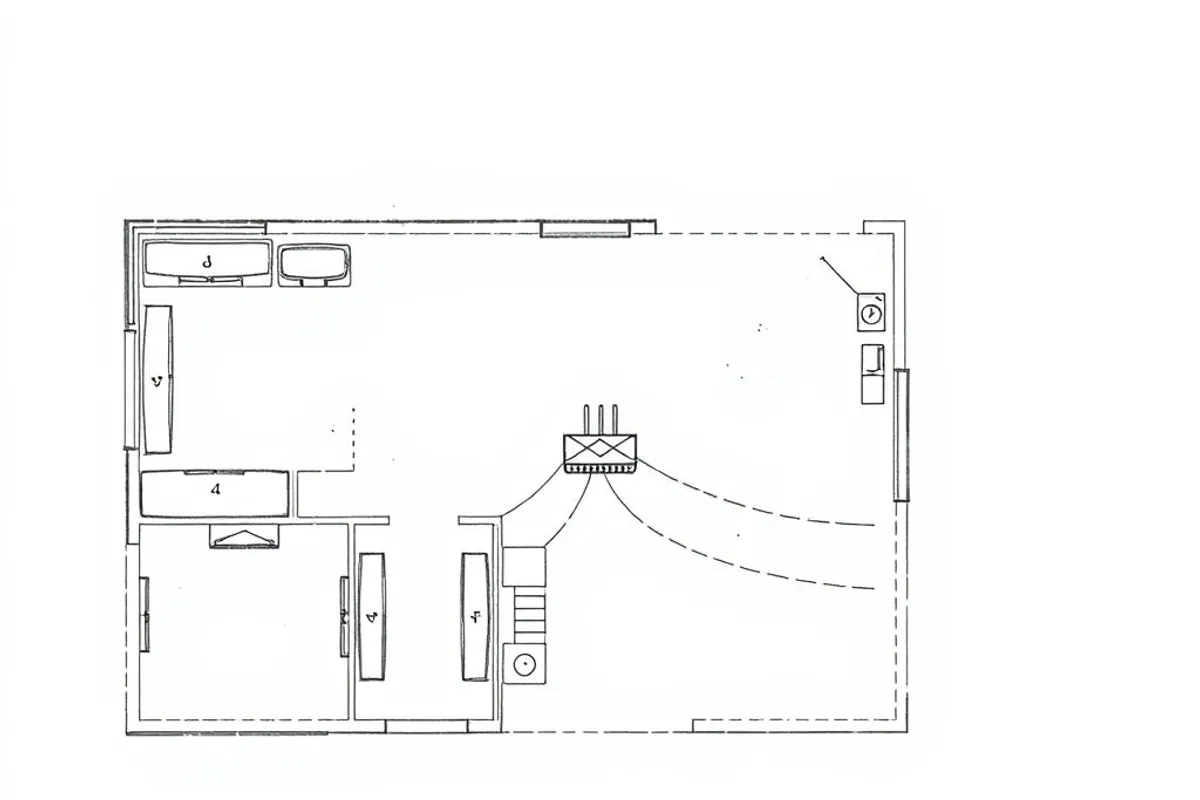
Sketch the floor plan and mark where people use the network, where the walls are thick, and where the fibre or cable enters. Note the devices that cannot tolerate drops: work laptops, consoles, TVs and any camera that records continuously. Then count the rest. A typical household in 2026 runs twenty to forty connected devices, and that number changes router choice more than raw speed claims do.
Measure before you change anything. Run a speed test next to the router, then in the worst room, at the time of day when everything is busy. Compare the two numbers and note whether the problem is coverage, congestion or the internet plan itself. Without that baseline you cannot tell whether the new hardware helped.
Choose the Right Router or Mesh
A single good router is enough for many apartments and small houses. Mesh systems earn their price in larger homes with several floors or long hallways, because they hand devices between units instead of forcing one distant radio to shout. Buy mesh only if you can place the nodes with a wired or strong wireless backhaul; three badly placed nodes are worse than one good router.
Ignore the biggest number on the box. Wi-Fi 6 and Wi-Fi 6E handle crowded homes better than older standards, and Wi-Fi 7 is useful mainly if your devices support it. What matters is a modern chipset, enough Ethernet ports, and firmware that still receives security updates. A $90 router with current firmware beats a $300 router abandoned two years ago.
- One router for most flats; mesh for multi-floor homes with dead zones
- Wi-Fi 6 is the sensible baseline in 2026; Wi-Fi 7 only if devices support it
- Look for at least two LAN ports and ongoing firmware support
- Budget $80 to $250 for the router; cabling costs extra
- Keep the router's box and receipt for warranty and returns
Place the Hardware Properly
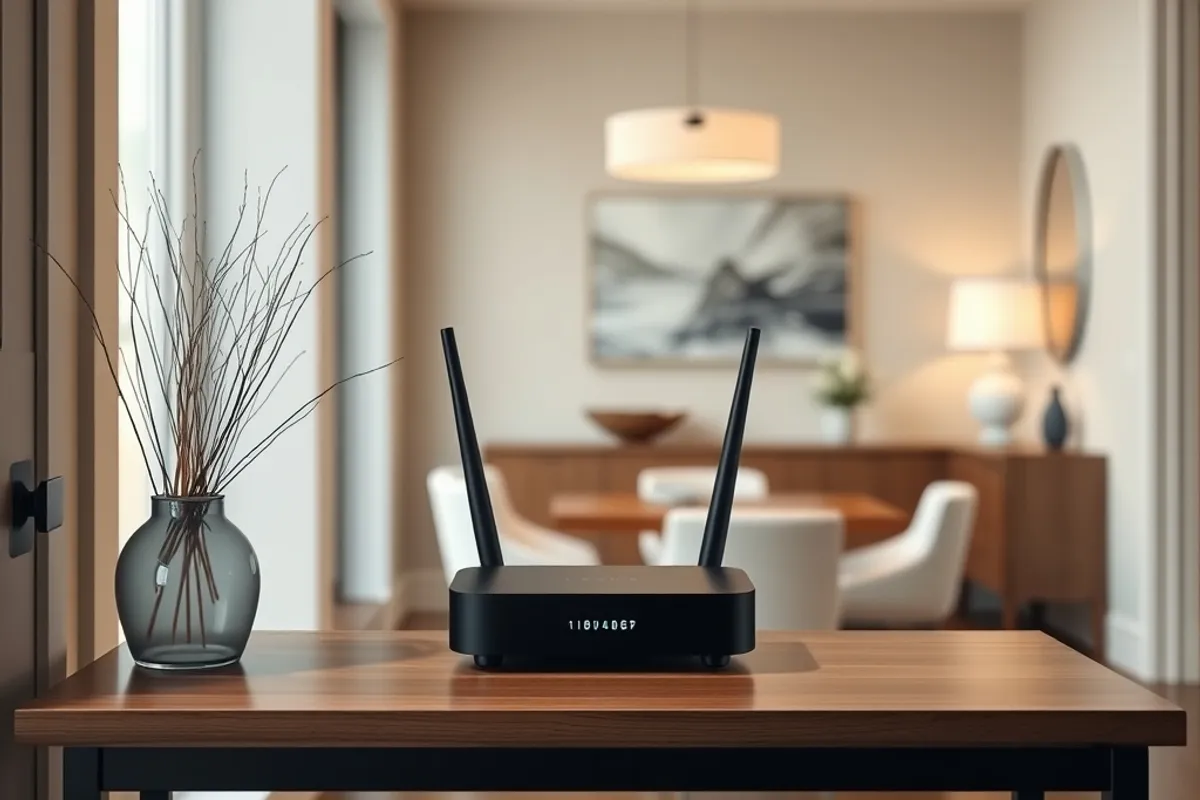
Put the main router high, central and in the open. Avoid cupboards, metal shelves, mirrors and the floor. Keep it away from the microwave and cordless phone base. These rules sound trivial and they solve a surprising share of complaint calls, because radio waves do not read interior design magazines.
If the internet enters at the edge of the house, do not force the router to cover everything from there. Use a short Ethernet run to a central point, or place a mesh node between the entry and the far rooms. Every wall costs signal, and a brick or concrete wall costs a lot. Sometimes moving the box two metres changes the whole experience.
Wired Beats Wireless Where It Counts
Run cable to the devices that stay put and matter: the work desk, the television, the console and any access point. Ethernet is cheaper than people expect and far more reliable than Wi-Fi for video calls and backups. If drilling is impossible, flat cable under a carpet edge or a pair of powerline adapters can help, though powerline performance varies by wiring.
Label both ends of every cable. Future you will not remember which run goes to the bedroom, and a labelled patch panel turns a weekend of guessing into a five-minute change. Leave a service loop at each end so the cable can be re-terminated if a clip breaks. This is the least glamorous step and the one professionals never skip.
Every device you can wire is one less device competing for airtime. Cable is the cheapest upgrade in the house.
Channel, Band and Interference Basics
Use the 5 GHz band for anything that needs speed, and leave 2.4 GHz for smart plugs and older devices. On 2.4 GHz, choose channels 1, 6 or 11 and avoid overlapping neighbours. On 5 GHz, let the router auto-select unless you have a reason to fix a channel. Wider channels carry more data but travel less and interfere more, so 80 MHz is usually the right compromise.
Turn off old compatibility modes if every device is reasonably modern, and disable WPS. If a neighbour's network is saturating your channel, a scan from a phone app will show it. Change once, test for a week, and avoid constant tweaking. Stability comes from a boring configuration, not from daily optimisation.
Secure the Network in Ten Minutes
Change the router's admin password, disable remote administration, and use WPA2 or WPA3 with a long passphrase. Create a separate guest network for visitors and smart devices. Update the firmware, then enable automatic updates if the vendor offers them. These four steps prevent the majority of home network incidents.
Write the network name, password and admin login on a card stored somewhere safe, not taped to the router. If you share the house with others, agree who changes settings so two people do not fight the configuration. For current guidance on router security, see the CISA home network guidance.
Test, Document, Maintain
After setup, test in every room and write down the results. Note the device, the location, the band and the speed. Keep the diagram with the router manual. When something breaks later, you will know whether it is a new problem or a room that was always weak.
Restart the router once a month, check for firmware updates quarterly, and replace hardware when support ends rather than when it fails. If your home network supports a business, the security steps in network security basics every small office needs apply at home too. And if you are setting up analytics for the same household business, our analytics roadmap starts with the same discipline: measure first, then buy.
A good home network is invisible. Nobody compliments it, and that is exactly the point.